1
Choose AlienVoIP
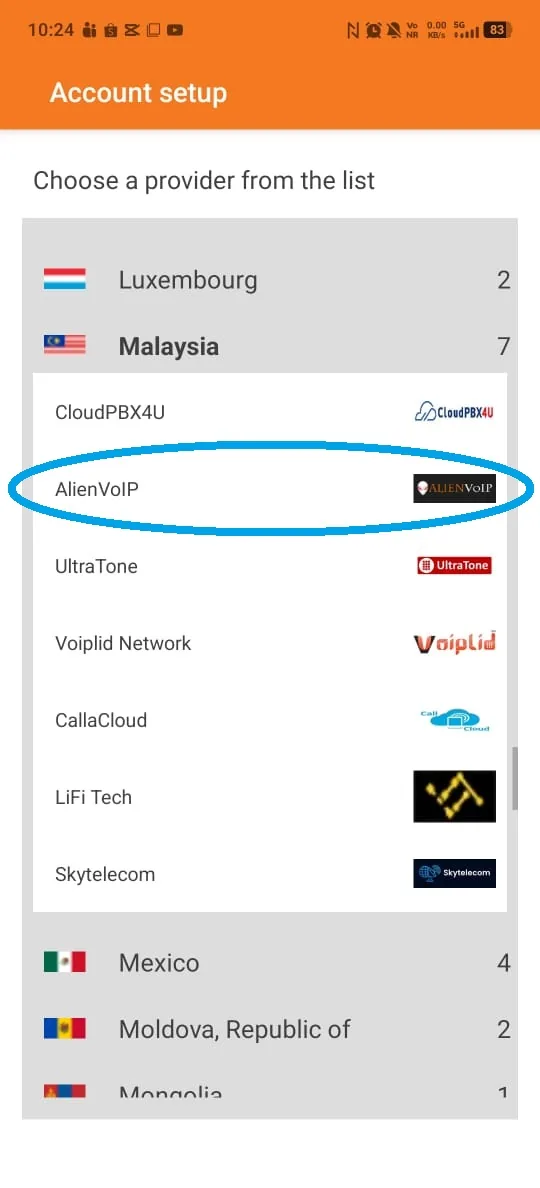
Open Zoiper's account wizard. In the provider list, choose Malaysia and then AlienVoIP.

Follow the screenshots for your device. Your extension number, SIP password and PBX hostname are specific to your AlienCloud PBX account.
Have your extension's SIP username and password ready. Use the PBX host assigned to your account if it differs from the example in the app.
Open Zoiper's account wizard. In the provider list, choose Malaysia and then AlienVoIP.
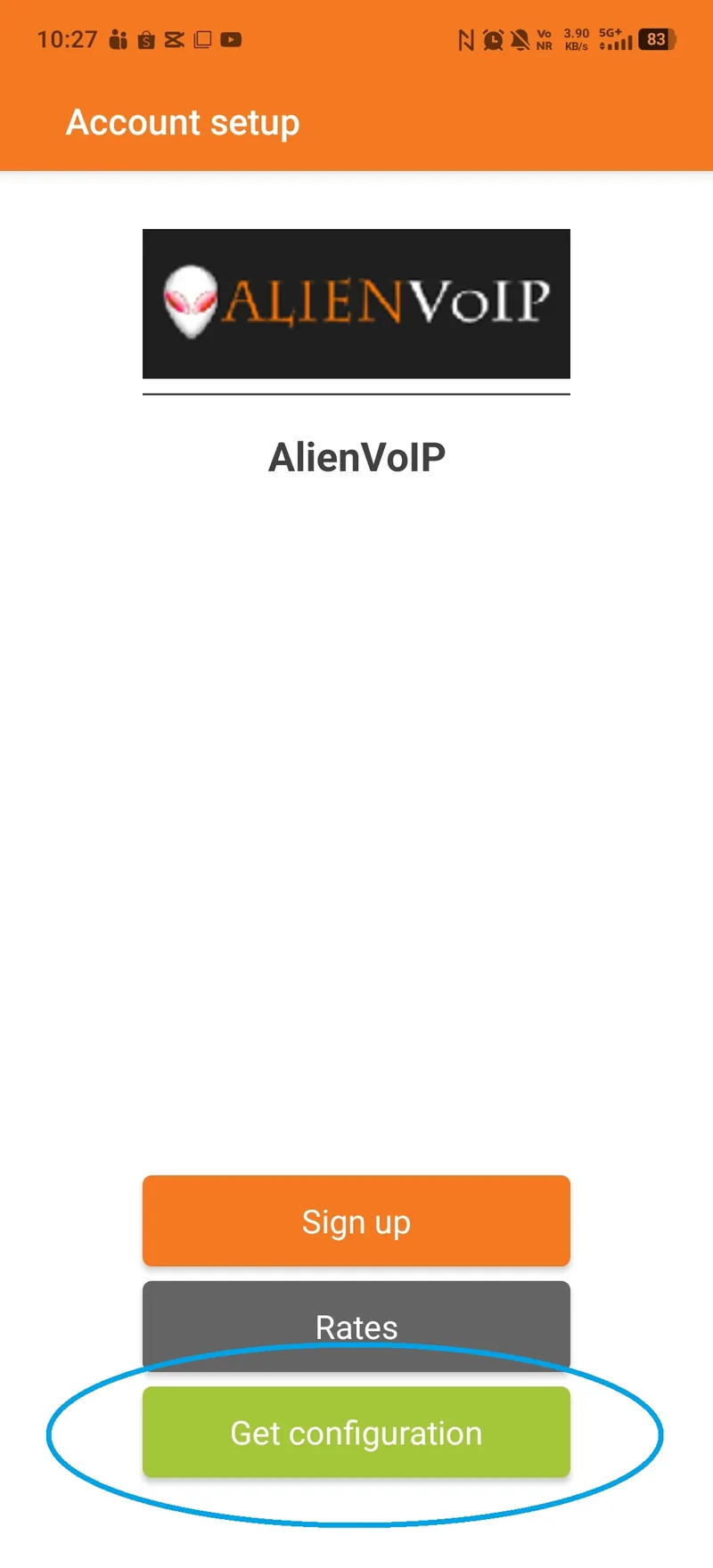
Select Get configuration to load the provider profile. Continue to the account sign-in screen.
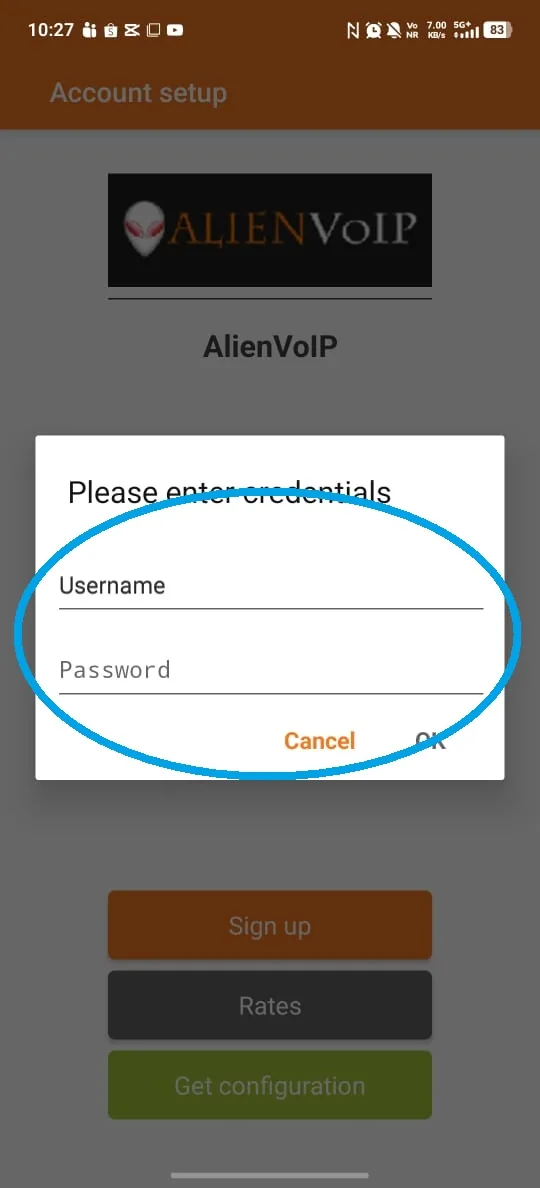
Enter your extension's SIP username and SIP password. These are the extension details, not your BizCloud App login. Save or continue.
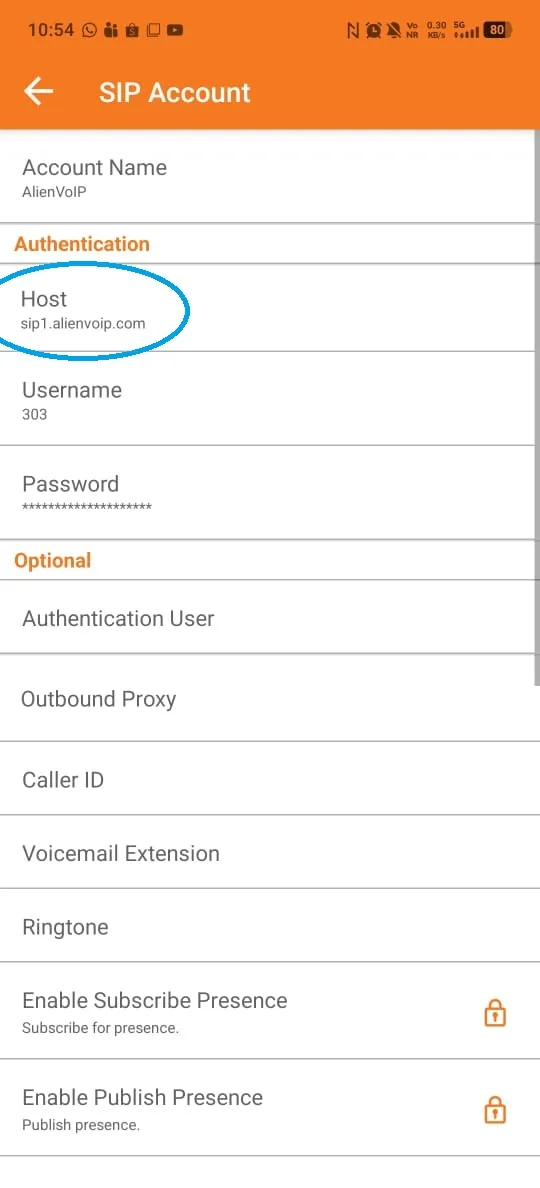
If registration fails, open the account settings and compare Host with the PBX server your administrator supplied. Correct it if needed, then save.
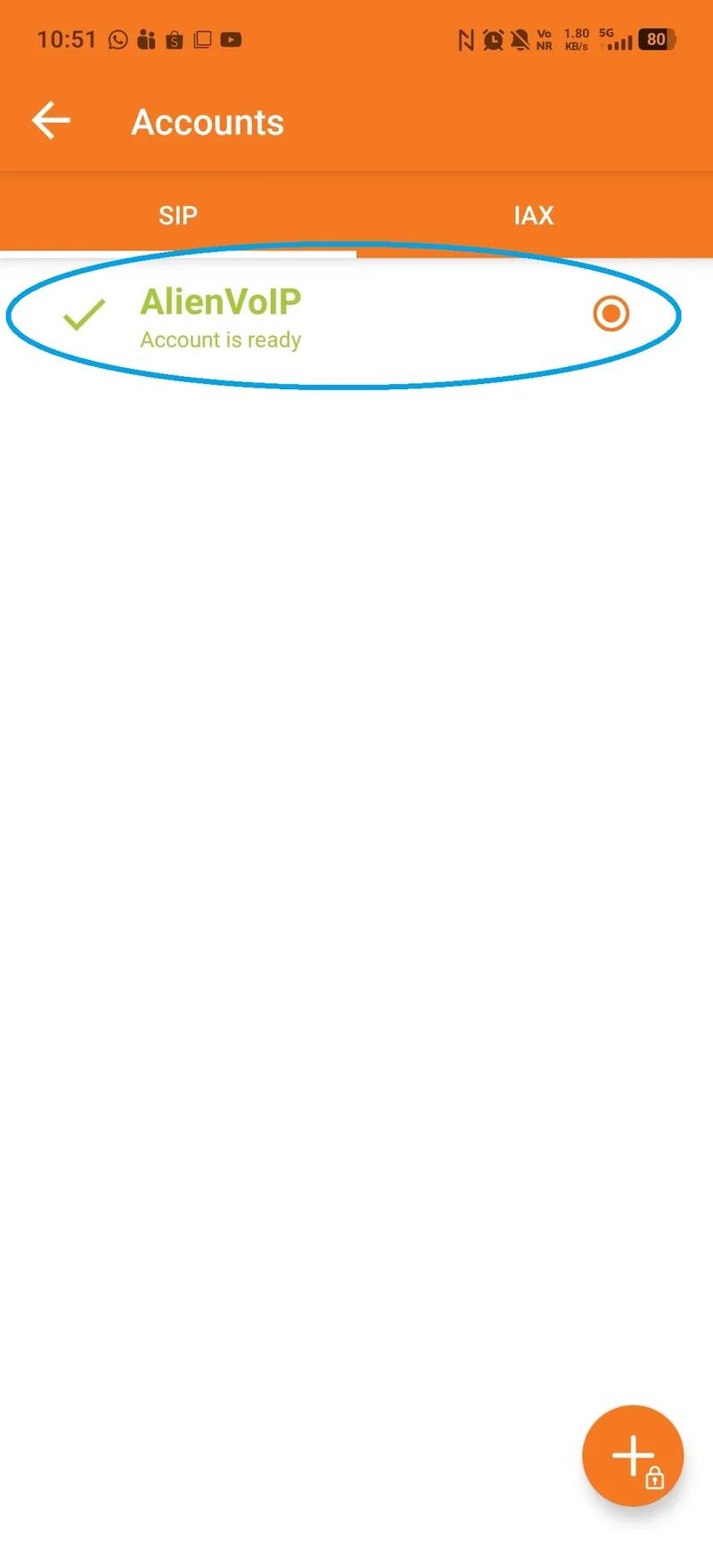
Wait until the account shows Ready. Dial another extension, then test an incoming call and two-way audio. Allow microphone and notification permissions if prompted.
Keep your SIP password private. Use the example screens to locate each control, then enter the account values supplied to you.
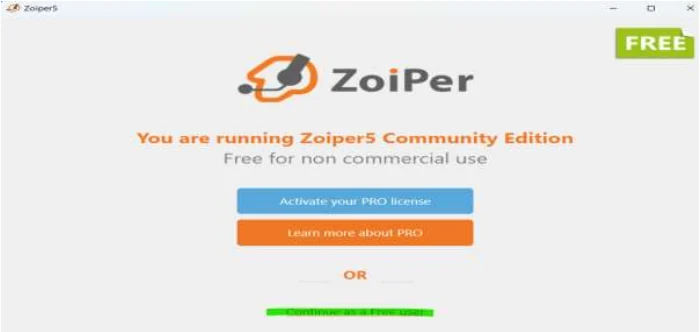
Install Zoiper 5 from its official site. At the first-run screen, activate the licence supplied for your organisation. The older screenshot also shows a Community Edition option for non-commercial evaluation.
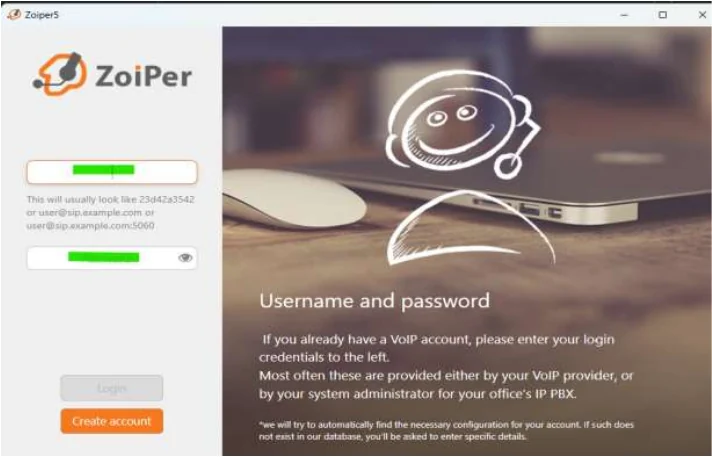
In the account window, enter the SIP username or extension and the SIP password given by AlienVoIP. Select Login to continue. Do not use your website or email password unless your administrator explicitly supplied it as the SIP password.
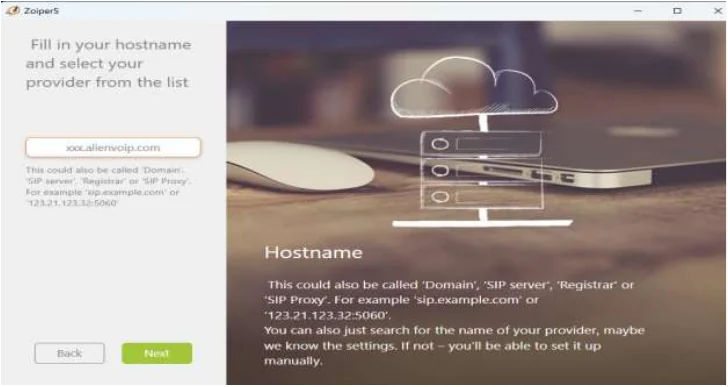
Type the exact hostname or domain provided for your AlienCloud PBX account, then select Next. The example domain in the screenshot is only a placeholder.
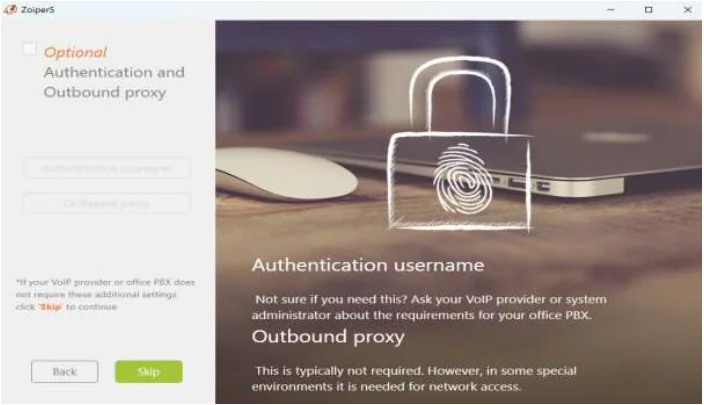
If your administrator provided a separate authentication username or outbound proxy, enter it here. Otherwise leave these optional fields blank and select Skip, as in the supplied guide.
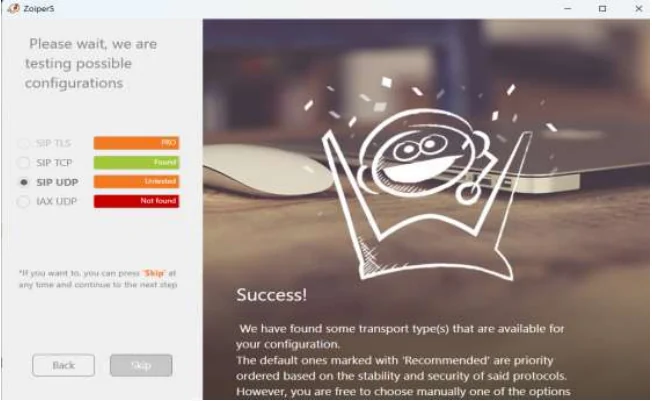
Zoiper may test available connection types. The supplied guide selects Skip and confirms the warning prompt. If your administrator has specified a transport, use that setting rather than guessing from the screenshot.
Once the account has been added, close the help or setup panel to return to Zoiper's main window. The account should now appear in the account list.
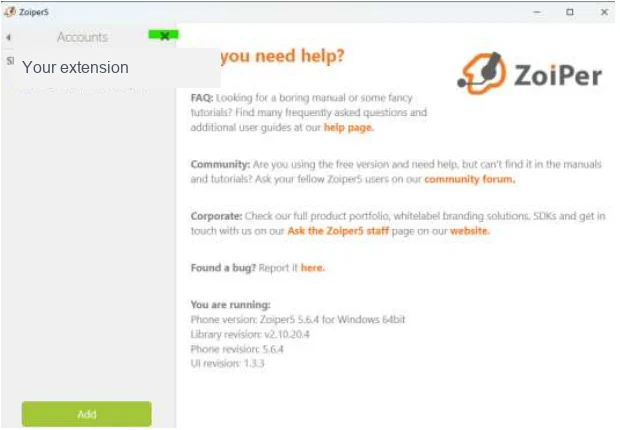
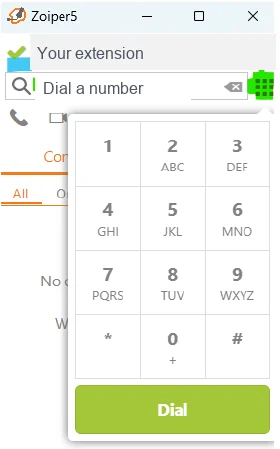
A green tick beside the account indicates successful registration in the supplied guide. Use the dial pad to call another extension, then test an incoming call. If registration fails, recheck the credentials and hostname before contacting support.
Tell us which step stopped you, your Zoiper version and the error shown on screen. Keep the SIP password out of screenshots and messages.