sales@bizcloud.asia   WhatsApp Line 1: +603 2780 3801   WhatsApp Line 2: +6016 450 2380   KL: +603 2780 3880   PG: +604 2024 033   JB: +607 4890 353
Windows desktop manual

Set up MicroSIP on your Windows PC.

Add your AlienCloud PBX extension, check that MicroSIP is Online, then make a test call. The illustrated steps also show how to transfer a live call.

Account fields

Know what to enter

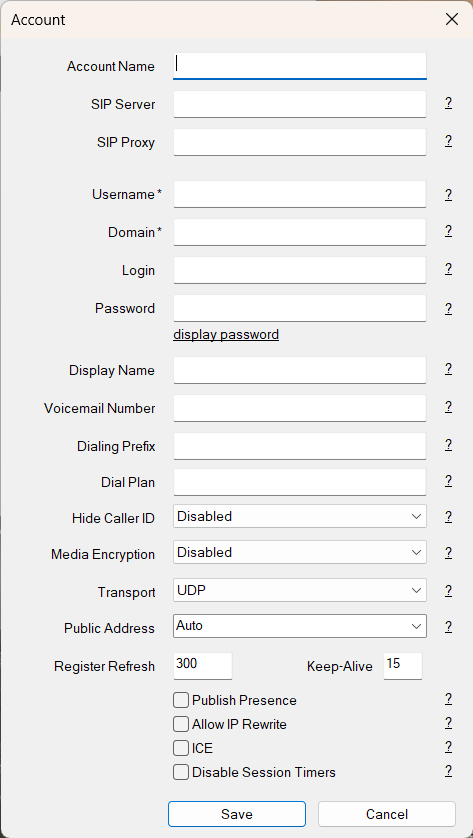
Use the exact values supplied for your extension. Your BizCloud employee password is a separate login.

MicroSIP fieldUse this AlienVoIP value
Account NameA label you recognise, such as “Office extension”.
SIP ServerThe PBX hostname supplied for your extension.
SIP ProxyOnly enter this if your administrator supplied a separate proxy.
UsernameYour SIP username or extension number.
DomainThe assigned domain, if it is different from the SIP Server.
LoginUse a separate authentication username only if one was supplied; otherwise use the extension details your administrator provided.
PasswordThe extension's SIP password.
Five illustrated steps

Add the account and test calls

Menus can look slightly different across MicroSIP versions. Keep your password out of screenshots or support messages.

1

Install MicroSIP and choose Add Account

Install MicroSIP on your Windows PC from the official download page. Open the app and choose Add Account from the account menu. If another account is already present, use the menu to add a new one.
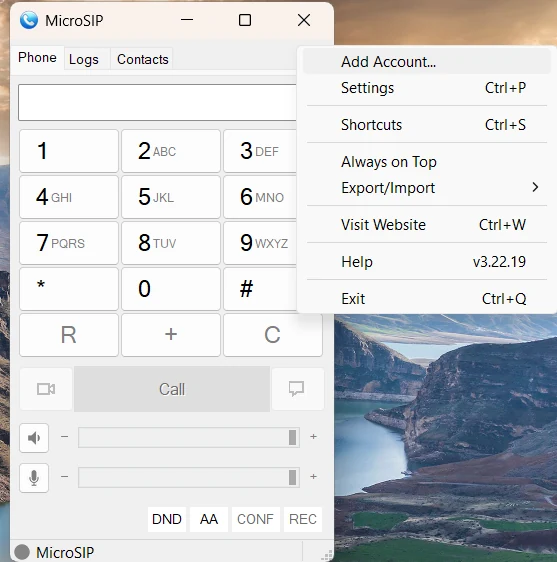
MicroSIP menu with Add Account selected
Open the account menu, then select Add Account.
2

Enter your extension's SIP details

Fill SIP Server, Username and Password with the values assigned to your extension. Enter a separate Domain, Login or SIP Proxy only when those values were provided. Select Save.

MicroSIP account settings with the SIP server, username and password fields
Follow your account sheet rather than copying values from an example screenshot.
3

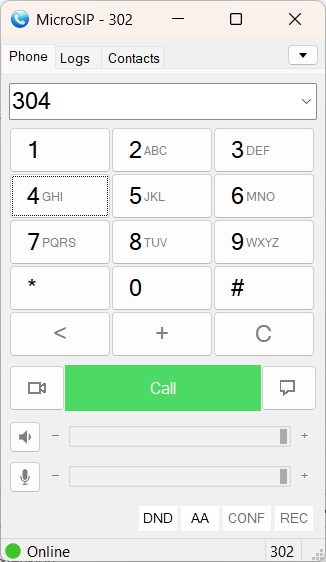
Look for Online and make a call

Wait for MicroSIP to display Online. Dial a colleague's extension and press the call button. Then ask the colleague to call you back. If it stays offline, check the server, username, password and internet connection.

MicroSIP dial pad with Online registration status
Online means the extension is registered with the PBX.
4

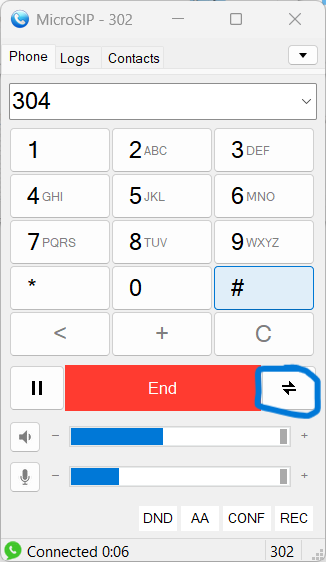
Open transfer during a live call

While connected to a caller, select the Transfer control in the call window. Keep the caller on the line until you have entered the destination.

MicroSIP live call controls with the Transfer button
The transfer control is available while the call is active.
5

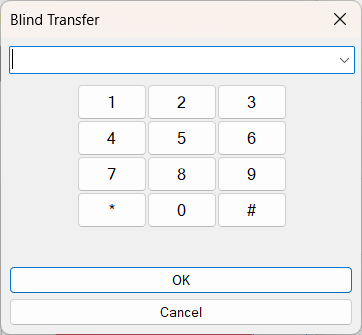
Enter the destination and complete transfer

Type the colleague's extension or the number approved by your administrator. Confirm the transfer in MicroSIP. Test this with a colleague before handling customer calls so you know how your PBX routes the call.

MicroSIP transfer destination field
Enter the correct destination extension before confirming.

MicroSIP is still offline?

Ask your administrator to verify the extension, PBX hostname and SIP account assignment. When contacting AlienVoIP, include the MicroSIP version and exact error, but never your password.